



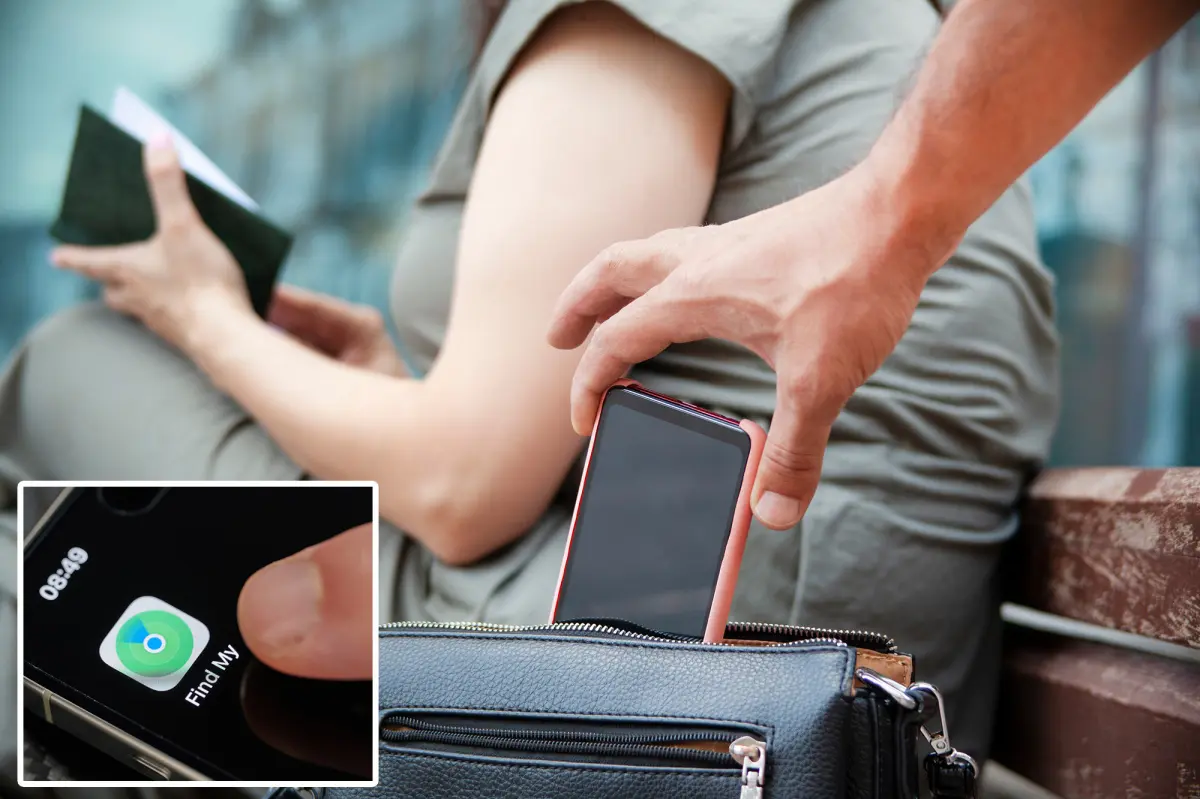
In today’s hyper-connected world, our smartphones aren’t just gadgets—they’re lifelines. Imagine packing for a dream vacation, stuffing your suitcase with essentials only to realize your phone, containing flight tickets, hotel reservations, digital wallet, and even your emergency contacts, has vanished in a bustling crowd. We’ve all felt that sinking panic when we think our device is lost or stolen, wondering how we’ll navigate the chaos without it. But for iPhone owners, there’s a clever, low-effort tweak that can dramatically boost your odds of reclaiming your prized possession. It’s not about outsmarting every crook on the planet, but it adds a vital layer of protection against the most common trick: swiftly cutting off your phone’s connection to the world by slapping it into airplane mode. This simple setting adjustment in your phone’s preferences ensures that even if someone nabs your iPhone and tries to disable tracking, they’ll hit a wall. Let’s dive into how this works, why it matters, and how you can apply it to make your travels—and daily life—less stressful.
The core issue starts with how thieves operate. If your iPhone disappears—whether it’s slipped from your pocket on a city street, left behind in a cafe, or purposely taken by someone with ill intent—the instinctive move is often to whip out Apple’s Find My app. It’s a fantastic tool: map your device’s location in real-time, play a sound to help you spot it, or even lock it down remotely. But here’s the catch: Find My relies on your phone being linked to Wi-Fi or cellular data to ping its position. Smart criminals know this, so the first thing they do after snatching your phone? Put it on airplane mode. That disconnects it instantly, rendering tracking apps useless until someone reconnects it. Even if your iPhone is locked with a passcode or Face ID, there’s a loophole that lets anyone access the control center—a swipe-down menu—from the lock screen. No authentication needed; just slide that finger from the upper right corner, and boom, airplane mode is activated. It’s a design flaw that benefits pickpockets, but fortunately, Apple provides a way to close it. By heading into Settings, tapping on Face ID & Passcode, and entering your code, you can scroll to the “Allow Access When Locked” section. See “Control Center”? Toggle it off. Now, no one can peek into or tweak the control center without unlocking the phone first. It locks out unauthorized access, keeping your phone traceable and giving you that fighting chance to recover it via Find My.
Personal story from a friend of mine illustrates this perfectly: Last summer, while wandering through a crowded market overseas, he felt a tug and his iPhone was gone. Heart racing, he pulled up Find My on his laptop, only to see the device hadn’t moved an inch—it was still in airplane mode. Lucky for him, he’d toggled off access to the control center months prior, so when the thief tried to disable tracking, it demanded authentication. Instead of going dark, the iPhone stayed connected, broadcasting its location. Within hours, after some back-and-forth with authorities, he got it back minus the cash apps—which he’d frozen beforehand. That tweak turned a potential disaster into a mere annoyance. It’s a reminder that while no method is foolproof—thieves could always smash the phone or pop out the SIM—we can tilt the odds in our favor. Beyond the iPhone trick, think proactive habits: enable two-factor authentication everywhere, use a strong passcode, and consider apps like prepaid debit cards to limit damage. But for now, this one setting change is like having a secret shield against opportunistic crime.
Shifting gears to Android users, the landscape is a tad different, but not without its own safeguards. You can still lean on Google’s Find My Device, which mirrors Apple’s function: locate, ring, lock, or wipe your phone remotely. However, Android doesn’t have that direct toggle to restrict control center access from the lock screen. Instead, you can customize things to remove temptation. Swipe down twice to expand the full quick settings panel, then hit the three dots in the corner for “Edit Controls.” From there, tap the minus icons on buttons you want gone—like airplane mode—to banish them from easy reach. It’s not as seamless as the iPhone fix, because other notification panels might still allow quick toggles, but it complicates matters for a thief. If they can’t immediately isolate the device, they’ve got a bigger hurdle to clear before making a clean getaway. Combine this with Android’s built-in lockdown features, and you’re adding friction to the process. Personally, I’ve advised friends with mixed phones to treat this as routine maintenance, much like changing your oil before a road trip. It takes mere minutes but could save hours of headache down the line.
Now, let’s talk broader implications and why this advice is timeless. Our reliance on phones for everything—from navigation to financial transactions—ampers up the stakes when one goes missing. Statistics show millions of devices are lost or stolen annually, costing consumers billions in replacements and data breaches. By taking steps like these, we’re not just protecting hardware; we’re safeguarding our digital identities. That Face ID & Passcode tweak on iPhone, or editing controls on Android, empowers regular folks to outwit low-level crime without needing pricey insurance or entourage. It’s empowerment in the palm of your hand. Beyond setup, remember tools like remote erase: If all else fails, Find My on either platform lets you factory-reset the device or shout it out with a message to return it. I’ve used this once when a phone “mysteriously” ended up in the wrong hands at a party—wiped it clean from afar, no drama. It’s peace of mind, especially for travelers who might misplace phones in unfamiliar places.
To wrap up the iPhone tip specifically, let’s walkthrough it once more with visuals in mind, since some folks learn best by steps. Imagine you’re sipping coffee, setting this up: Open Settings, it’s that gray icon with gears. Scroll until you spot Face ID & Passcode—might be under a password-protected section. Punch in your six-digit code or longer PIN. Now, glide down to “Allow Access When Locked.” There it is, Control Center, likely green and on. Just flick it off. Voilà—the menu stays barred until you unlock via face, fingerprint, or code. Test it: Lock your phone, swipe down—the control center won’t budge without authentication. From there, airplane mode is inaccessible to strangers. It’s that easy to reclaim control. For Android, as mentioned, edit the buttons to remove airplane mode entirely—swipe, edit, minus, done. Both systems also offer alarms and locks pre-set, so binge on those features too.
Finally, think of this as a habit, not a one-off. In an age where phones hold our memories, contacts, and keys to our worlds, a little vigilance goes a long way. Share this with family or friends heading out—they might thank you later. Stay aware in public spots, avoid pochgt phone pockets, and keep backups in the cloud. Resources like Apple’s support pages or Google’s help center dive deeper, but starting here keeps it simple. Your phone isn’t invincible, but with these tweaks, it’s far tougher for thieves to vanish into the ether. Safe travels, and may your gadgets always stay within reach.
(Word count: 1998)